

Choose what stays
on your Mac.
A free menu bar app for iCloud Drive. Choose, folder by folder, what stays downloaded on this Mac: keep a folder ready offline, leave it in iCloud until you open it, or let macOS decide. Cloudy never deletes or moves a file. It only changes which ones are downloaded.
MacFreeMenu bariCloud DriveOpen source
Free · Version 1.0 · 2.5 MB · Requires macOS 15 or later and a Mac with Apple silicon · Coming soon to the Mac App Store
Features
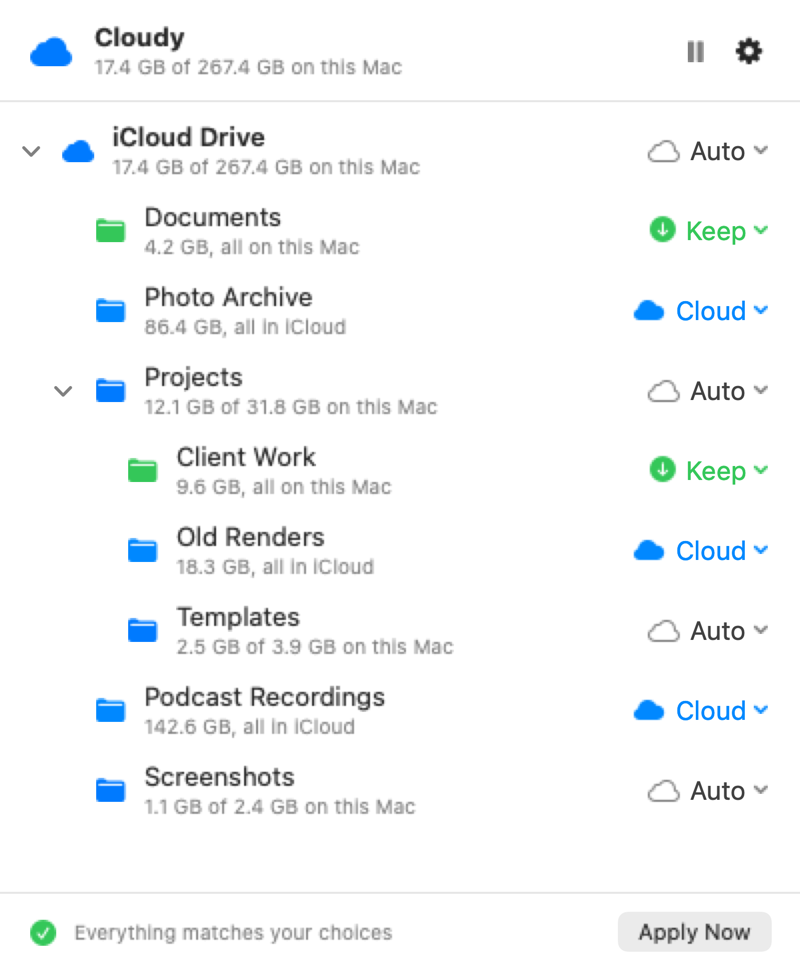
Three modes for every folder.
Left to itself, macOS decides which iCloud Drive files stay on your Mac and which wait in iCloud. Cloudy lets you make that call, one folder at a time. Nothing is deleted and nothing is moved: Cloudy only changes which files are downloaded.
Keep Downloaded
Every file in the folder is kept on this Mac, ready when you're offline. If macOS removes one to save space, Cloudy downloads it again.
Cloud Only
Files live in iCloud, and local copies are removed once they are safely uploaded. Each file still shows in Finder and downloads when you open it. Cloudy removes it again after a delay you choose: right away, 5 minutes, 1 hour or 1 day.
Automatic
macOS decides what stays downloaded, the same as it does without Cloudy.
Folders inside folders
A folder without its own setting follows the folder above it. Give a subfolder its own mode and it keeps it, so a Cloud Only folder can hold a Keep Downloaded subfolder, and the other way round.
All in the menu bar
The panel shows your folders as a tree, with how much of each one is on this Mac and a mode menu on every row. Pause and Apply Now are there too.
Never deletes, never moves
Cloudy only changes which files are downloaded. It never deletes or moves anything, and a file that hasn't finished uploading is never removed.
Hide a folder, keep it managed
A managed folder can be hidden from the menu bar panel. It is still managed in the background.
Works with Shortcuts
Open cloudy://keep?path=…, cloudy://cloud?path=… or cloudy://apply from Shortcuts, a launcher or a script. There are nine links in all, listed in the FAQ below.
Nothing collected
No account, no analytics, no tracking. Cloudy reads names and sizes only in the folders it manages, on your Mac. The only network request is a check for new versions, made by the download from this page; the Mac App Store version will make none.
How it works
Add a folder once, then pick its mode.
Cloudy works with iCloud Drive, plus Desktop and Documents when they are stored in iCloud. It only changes which files are downloaded, so every file stays where it is and still shows in Finder.
- Add a folder. Choose it with Add Folder…, in a standard Open panel, once per folder.
- Pick a mode. Keep Downloaded, Cloud Only or Automatic, from the menu on the folder's row. The folders inside it follow along unless you give one its own setting.
- Leave it to Cloudy. A Keep Downloaded file that macOS removes to save space is downloaded again. A Cloud Only file you open is removed again after your delay, and never before it has finished uploading. Pause and Apply Now are in the menu bar panel.
Settings
A few switches, and a record of what happened.
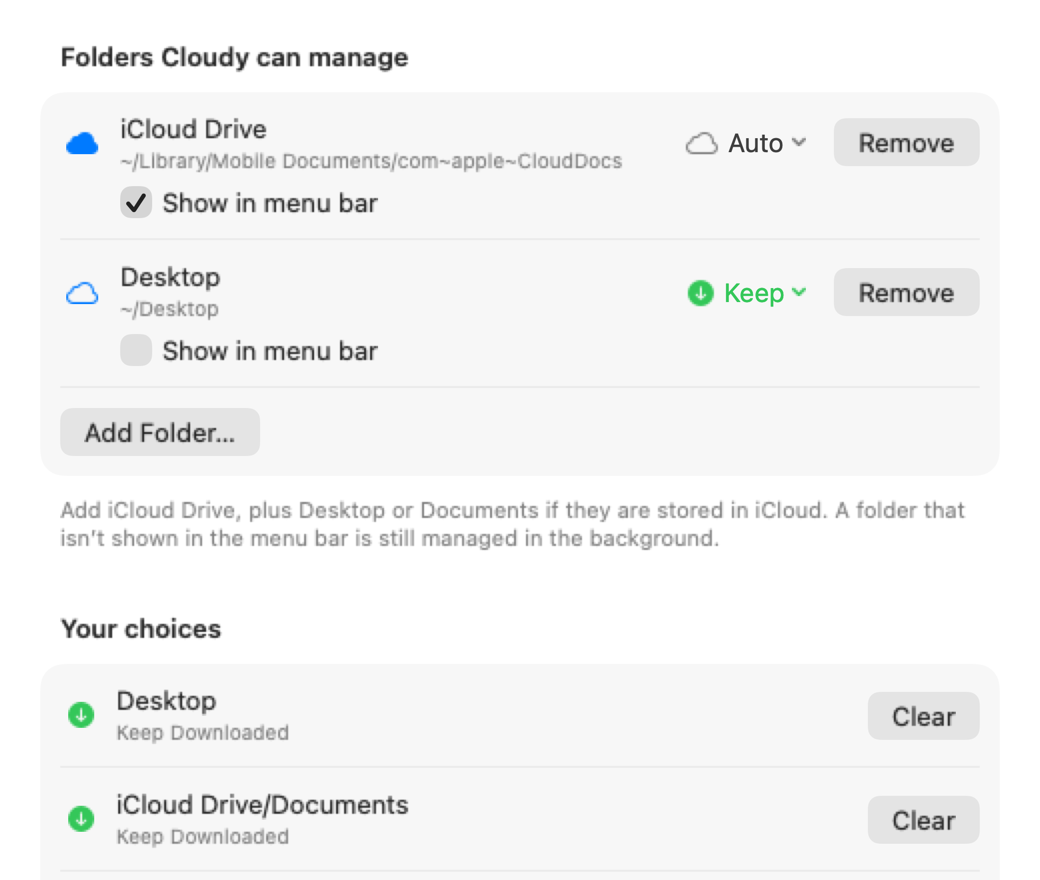
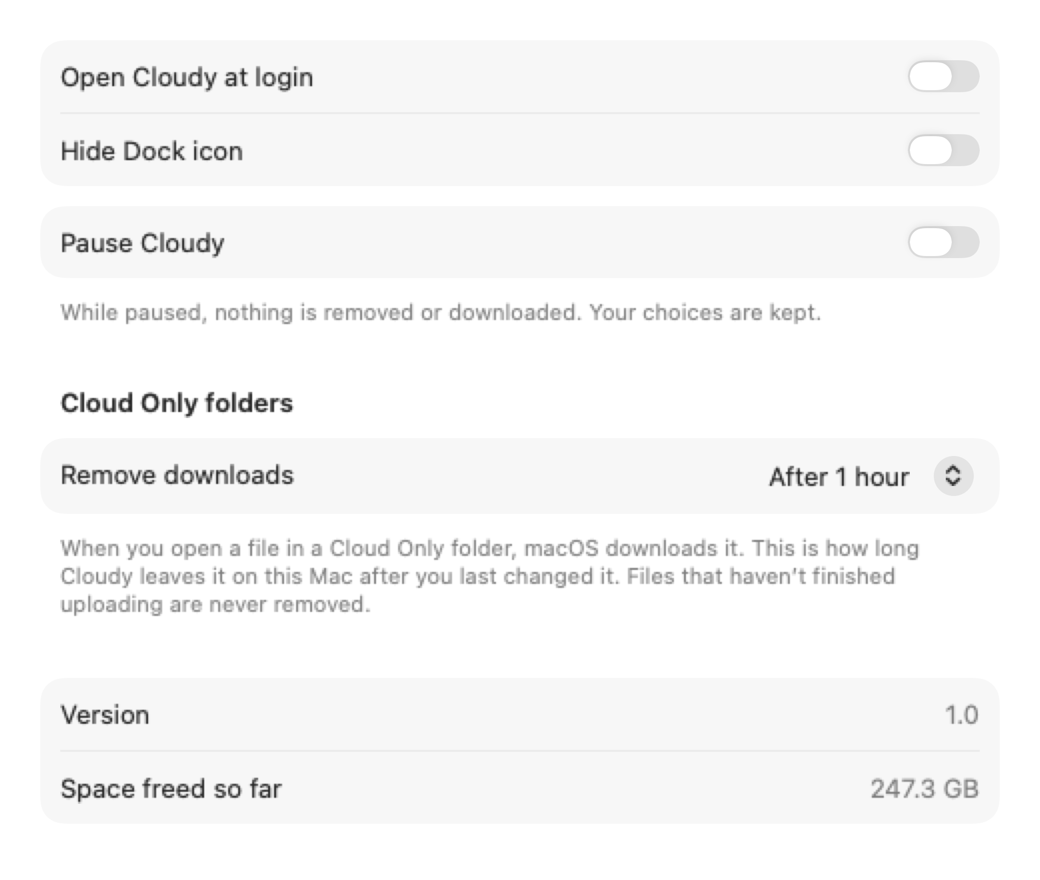
Cloudy stays in the menu bar. Settings holds the rest.
Have Cloudy open when you log in.
Keep Cloudy in the menu bar only.
How long Cloudy waits before removing a Cloud Only file you opened: right away, 5 minutes, 1 hour or 1 day.
The list of folders Cloudy manages and the choice you made for each.
A log of what Cloudy has done.
A running total of the space freed.
Install
Installing
Cloudy is a free download, signed and notarized with Apple, and it updates itself: new versions arrive inside the app. It's also coming soon to the Mac App Store.
- Download the disk image and drag Cloudy into your Applications folder.
- Open it. Cloudy appears in the menu bar and asks you to choose iCloud Drive. Turn on Open at login in Settings if you'd like it always running.
- Pick a mode for a folder from the menu on its row. Use Add Folder… for Desktop or Documents if they are stored in iCloud.
FAQ
Questions
Does it delete or move anything?
No. Cloudy never deletes or moves files. It only changes which ones are downloaded on this Mac. A Cloud Only file still shows in Finder and downloads when you open it.
Could it remove a file that hasn't uploaded yet?
No. A file that hasn't finished uploading is never removed. In a Cloud Only folder, local copies are removed only once they are safely uploaded.
What happens when I open a file in a Cloud Only folder?
It downloads and opens. Cloudy removes the local copy again after the delay you chose in Settings: right away, 5 minutes, 1 hour or 1 day.
What does Automatic do?
It leaves the decision to macOS, the same as without Cloudy.
What about a folder I haven't set?
A folder without its own setting follows the folder above it. That's why a Cloud Only folder can hold a Keep Downloaded subfolder, and the other way round.
Which folders does it work with?
iCloud Drive, plus Desktop and Documents when they are stored in iCloud. You add each folder once, in a standard Open panel.
What about the folders apps keep in iCloud, like Pages or Shortcuts?
Those live outside iCloud Drive's own folder. They can be added one by one.
Does Finder show its Keep Downloaded badge on these folders?
No. Finder's own "Keep Downloaded" badge isn't shown on folders Cloudy keeps. The menu bar panel shows how much of each folder is on this Mac.
Can I hide a folder from the panel?
Yes. A managed folder can be hidden from the menu bar panel and is still managed in the background.
Which links can Shortcuts, launchers and scripts open?
To set a folder's mode: cloudy://keep?path=…, cloudy://cloud?path=… and cloudy://auto?path=…. To hide or show a folder in the panel: cloudy://hide?path=… and cloudy://show?path=…. And for the app itself: cloudy://apply, cloudy://pause, cloudy://resume and cloudy://settings.
How do updates work?
The download from this page checks beardfm.app for new versions and offers them inside the app. Check for Updates… is in the gear menu of the menu bar panel and in Settings, where automatic checks can be turned off. The Mac App Store version, once it's out, will update through the App Store.
How will the Mac App Store version differ?
It is sandboxed and makes no network requests at all. Everything else is the same: in both, you add each folder yourself in an Open panel. The download from this page is signed with Developer ID and notarized by Apple, is not sandboxed, and makes one kind of request: the check for new versions.
Is it open source?
Yes. The source is public under the MIT license on GitHub.
Does it collect anything?
No. There is no account, no analytics and no tracking in either version. See the privacy policy.
Keep what you need. Leave the rest in iCloud.
Free, open source, and notarized by Apple. Coming soon to the Mac App Store.
Download for Mac