

Drop a video,
get animated captions.
A free app for Mac, iPhone, iPad and Android that listens to your video with Apple's on-device speech engine and burns in word-by-word captions in the style you pick. Edit the text, drag the captions where you want them, and export a new video. Nothing is uploaded anywhere.
MaciPhoneiPadAndroidFreeOpen source
Free on the App Store for Mac, iPhone and iPad · Direct Mac download: version 1.3 · 7.5 MB · macOS 26 or later · Android: version 1.1 · 14 MB · Android 10 or later, Google Play listing coming soon
Features
Captions that move with the words.
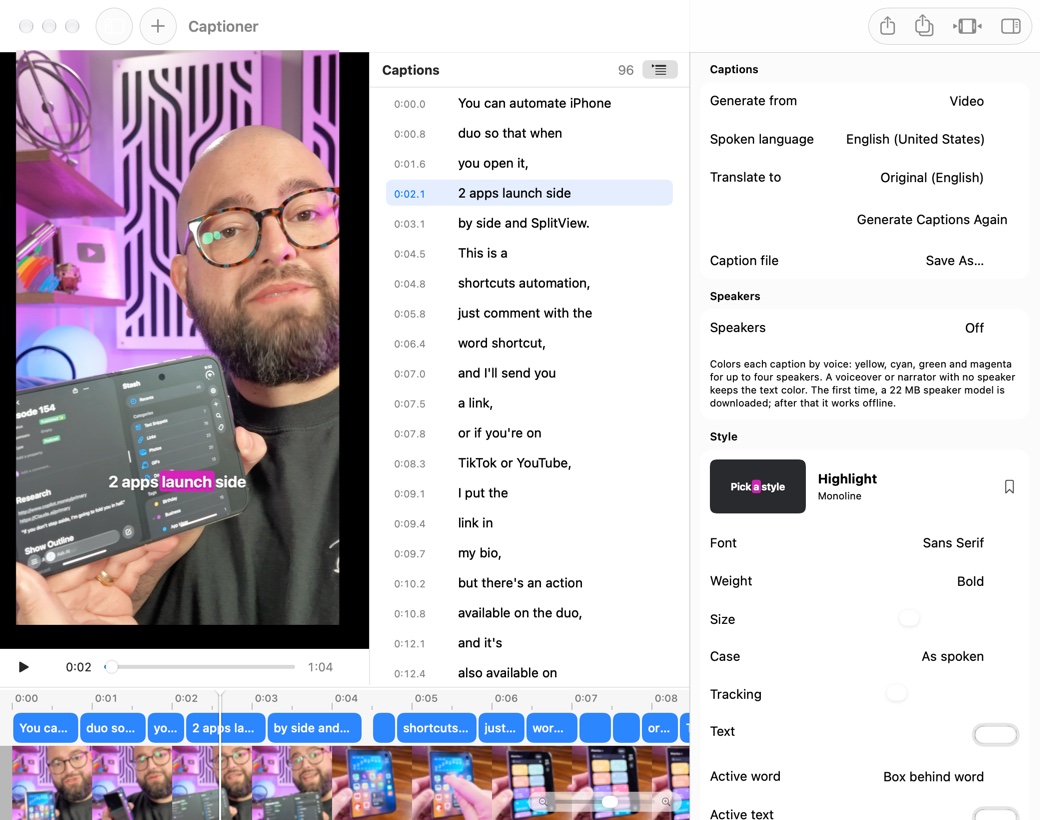
Captioner keeps the moment every word was spoken, so the word being said lights up as it is said. The same renderer draws the preview and the export, so what you see in the window is exactly what ends up in the file.
Fifteen styles, all yours to change
Highlight boxes, outlines, karaoke colors, pops, typewriter reveals, boxed subtitles and single-word styles that show only the spoken word. Pick one, then change the font, size, case and every color.
Any font
San Francisco in sans serif, rounded, serif and monospaced designs, any font installed on your Mac, or a TrueType or OpenType file you add. Save a styled preset with your fonts and colors and make it the default for every new video.
Put them where you want
Drag the caption in the preview, or set a vertical position and left, center or right alignment. Vertical 9:16 shorts and 16:9 videos each remember their own spot.
Fix the words, or translate them
Every caption is editable in place next to the preview. Split a line before any word, merge two, delete one, or rebuild from the original recognition. Punctuation, title case and curse words are toggles, and a menu translates the whole set into another language on your Mac.
Retime on a timeline
A timeline runs under the video: the captions as blocks over a filmstrip, with the playhead through both. Drag a block to move a caption or drag its edge to change how long it stays up; blocks stop at their neighbours and snap to the playhead. Pinch or scroll to zoom, right-click or long-press to delete.
Batch the whole shoot, or watch a folder
Drop a folder's worth of clips at once and Export All writes every video with the same style. Or point Captioner at a folder: anything that lands there is captioned and exported on its own.
A color for every speaker
Turn on Speakers and Captioner listens for who is talking, then colors each caption by voice: yellow, cyan, green and magenta for up to four people, in the style of broadcast subtitles. Let it count the voices or tell it how many, change any line by hand, and pick your own four colors.
Your logo on every frame
Add a watermark, a network logo or your handle as a PNG, and set its opacity, size and margin, then drop it in any of nine spots. New videos start with the last one you used.
Your video, untouched
Exports keep the original resolution, frame rate and bit rate, and the audio is copied bit for bit, never re-encoded. H.264 by default, HEVC if you prefer. Already have an SRT or WebVTT file? Use it instead of transcribing.
How it works
Three steps, all on your Mac.
There is no account and no upload. The first time you caption a language, macOS downloads Apple's speech model for it; after that it works offline. A minute of video is transcribed in a few seconds and exported in a few more.
- Drop. Drag one video or a whole batch onto the window or the Dock icon. Transcription starts right away and captions appear as the speech is recognized.
- Style. Pick a caption style from the gallery, adjust fonts, colors and position in the inspector, and fix any word the engine heard wrong. The preview plays exactly what will be exported.
- Export. Captioner writes Your Video Captioned.mp4 next to the original, with the captions burned in and the audio untouched, ready for Reels, Shorts, TikTok or YouTube.
Install
Installing
Get Captioner from the App Store on Mac, iPhone and iPad, or download the Mac version directly. The direct download updates itself inside the app.
- Get Captioner on the App Store, or download the disk image and drag Captioner into your Applications folder. The direct download is signed and notarized with Apple, so macOS opens it without any security warnings.
- On the Mac, drop a video on the window or the Dock icon. On iPhone and iPad, pick one from Photos or Files.
- The captions appear in a few seconds. Exports land next to the original on the Mac, and in Photos on iPhone and iPad.
FAQ
Questions
Does it run on iPhone and iPad?
Yes. The App Store version runs on Mac, iPhone and iPad with the same engine, the same styles and the same translation. On iPhone and iPad, videos come from Photos or Files, and exports are saved to Photos and to Captioner's folder in Files. Watched folders are Mac-only.
Is there an Android version?
Yes. Captioner for Android is a separate app built for the phone: it recognizes speech on the device with Whisper (the English model downloads once, 57 MB; a multilingual model covers 90+ languages), has the same fifteen styles, editing, translation and export, and copies the audio untouched. Install the APK above (allow installs from your browser when Android asks), or wait for the Google Play listing. It needs Android 10 or later.
Which languages does it support?
Everything Apple's on-device engines support on your Mac: English, Spanish, French, German, Italian, Portuguese, Japanese, Korean, Chinese and more through Apple's newest model, and Swedish, Danish, Norwegian, Finnish, Dutch, Russian, Polish, Turkish, Greek, Arabic, Hebrew, Thai, Vietnamese and more through Apple's earlier dictation model (marked “dictation model” in the menu, slightly less accurate). Pick the language in the window or per video in the inspector; the model downloads once, then works offline.
Does it change my video quality?
The video is re-encoded once to burn in the captions, at the original resolution, frame rate and roughly the original bit rate. The audio is copied sample for sample, so it is identical to the source.
Does anything get uploaded?
No. Transcription and rendering run on your Mac. Captioner has no account, no analytics and no network features apart from checking for its own updates.
Can I use my own fonts and colors?
Yes. Every style's font, weight, size, case, colors, outline, shadow, highlight and animation can be changed. Save the result with the bookmark button and it appears in the gallery; mark it as the default and every new video starts with it.
Can it run on its own?
Yes. Add a folder under Settings › Watched Folders and every video that lands in it is captioned with your default style and exported automatically, with a notification when it's done. Turn on Open at Login and Captioner waits quietly in the background.
Can it translate the captions?
Yes. Pick a language under "Translate to" in the inspector and Apple's on-device translation rewrites the captions in Spanish, French, German, Portuguese, Japanese, Chinese and dozens more, keeping them timed to the original speech. Choose the original language to switch back. Nothing is sent anywhere; macOS downloads a language pack the first time.
Can I bring my own captions?
Yes. Choose "Generate from › Subtitle File" in the inspector and pick an SRT or WebVTT file. The cues are split into words and animated just like a transcription.
Where do exports go?
Next to the original by default, named after it with "Captioned" added, so nothing is ever overwritten. Settings can send them to a folder of your choice instead.
Is it open source?
Yes. The whole app is MIT-licensed on GitHub. Issues and pull requests are welcome.
Give your videos a voice people can read.
Free and open source, on the App Store or as a direct download.
Download on the App Store Direct download for Mac Android APK