

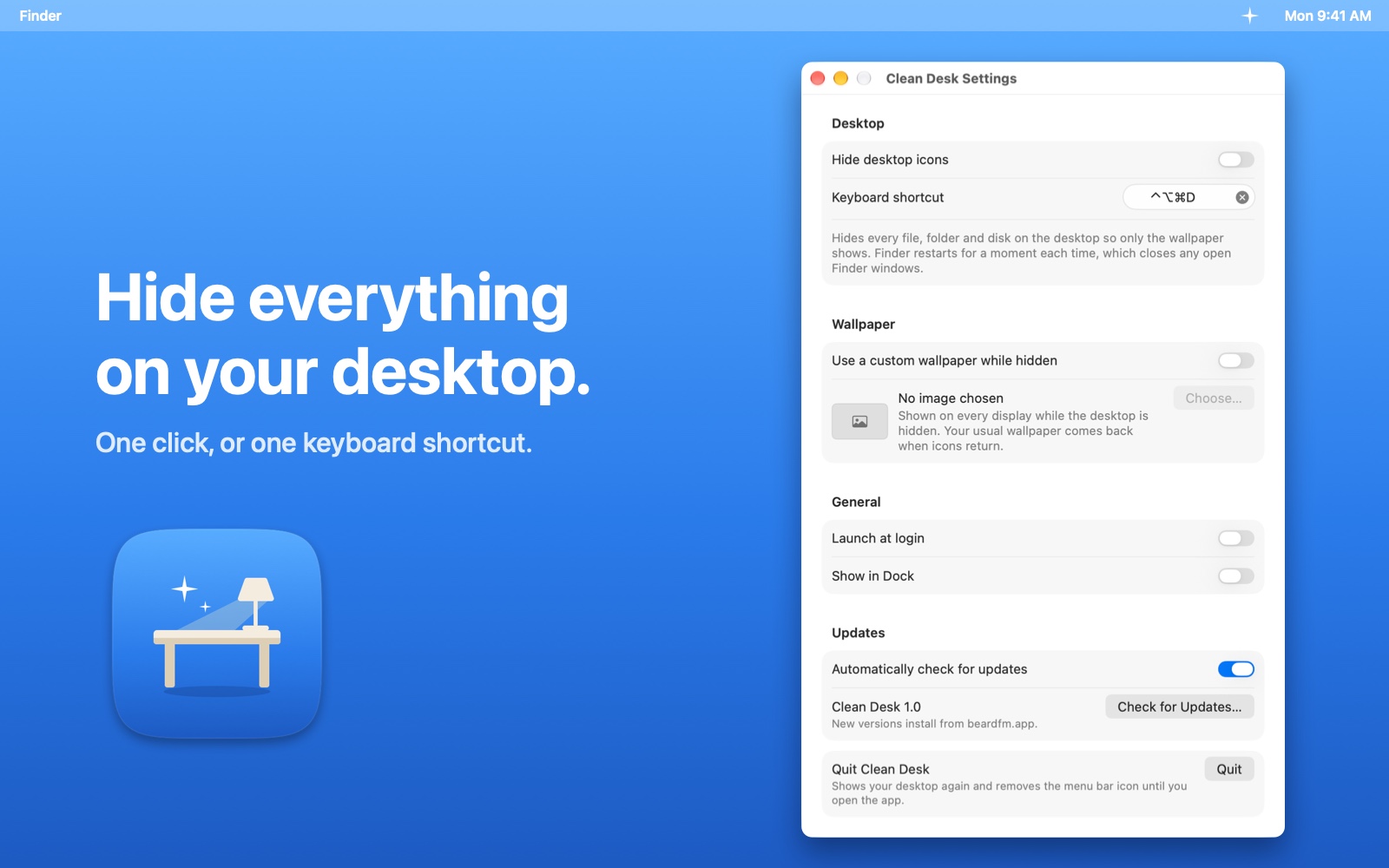
Hide everything
on your desktop.
A free menu bar app for the Mac. One click, or one keyboard shortcut, and every file, folder and disk on the desktop is out of sight: only the wallpaper shows. Click again and it's all back exactly where it was. Perfect for screen sharing, recording, presenting, or just thinking.
MacFreeMenu barOpen source
Free · Version 1.0 · 1.5 MB · Requires macOS 15 or later
Features
Your desktop, without the clutter.
Clean Desk lives in the menu bar and does one thing well. Nothing is moved, renamed or deleted: your files stay exactly where they are, Finder just stops drawing them until you ask for them back.
One click to clean
Click the icon in the menu bar and choose Hide Desktop Icons. Files, folders, mounted drives, disk images: everything on the desktop disappears, and the wallpaper is all that's left. Choose Show Desktop Icons and it's all back.
A shortcut from any app
Press ⌃⌥⌘D anywhere to toggle the desktop without reaching for the menu bar. Record a different combination in Settings if you prefer.
A wallpaper just for hiding
Pick an image and Clean Desk puts it on every display while the desktop is hidden, then brings your usual wallpaper back when the icons return. Handy for a plain backdrop on recordings and calls.
Ready when you log in
Turn on Launch at Login and Clean Desk is in the menu bar from the moment your Mac starts. Show it in the Dock too, or keep it as a menu bar item only.
Works with Shortcuts
Open cleandesk://hide, cleandesk://show or cleandesk://toggle from Shortcuts, a launcher or a script to control the desktop from your own automations.
Nothing collected
No account, no analytics, no tracking. The only request the app makes is a check for new versions, and you can turn that off.
How it works
Finder's own switch.
macOS has a built-in setting that tells Finder whether to draw the desktop at all. Clean Desk flips that switch and relaunches Finder, which takes about a second. Your files never move. Finder windows that were open close during the relaunch, so finish any drag you have going first.
- Hide. Click the icon in the menu bar and choose Hide Desktop Icons, or press ⌃⌥⌘D. The menu bar icon turns into a sparkle while the desktop is hidden.
- Work, record, present. Only the wallpaper (or the custom image you chose) shows. Drag files to the desktop and they land there as usual; you'll see them when you show the desktop again.
- Show. Same click or shortcut and everything is back where it was. Quitting Clean Desk shows the desktop too, so nothing stays hidden by accident.
Install
Installing
Clean Desk is a free download, signed and notarized with Apple, and it updates itself: new versions arrive inside the app.
- Download the disk image and drag Clean Desk into your Applications folder.
- Open it. The icon appears in the menu bar; there is no Dock icon unless you turn one on. Turn on Launch at Login in Settings if you'd like it always ready.
- Choose Hide Desktop Icons, or press ⌃⌥⌘D.
FAQ
Questions
Does it move or delete anything?
No. Your files, folders and disks stay exactly where they are. Clean Desk only tells Finder not to draw the desktop. Open your Desktop folder in a Finder window and everything is still there.
Why does Finder restart?
Finder only reads the desktop setting when it launches, so Clean Desk relaunches it after each change. It takes about a second, and macOS brings Finder straight back. Open Finder windows close during the relaunch.
Can I still save things to the desktop while it's hidden?
Yes. Saves, downloads and drags to the desktop all work as normal; the files are simply not drawn until you show the desktop again.
What happens to my wallpaper?
Nothing, unless you turn on the custom wallpaper option. Then Clean Desk remembers the wallpaper on each display, shows your chosen image while the desktop is hidden, and puts the original back when the icons return. If macOS can't report a display's current wallpaper (some dynamic and aerial wallpapers), that display keeps the custom image until you change it in System Settings.
Does it work on several displays?
Yes. The desktop is hidden on every display, and the custom wallpaper is applied to each one, including a display you plug in while the desktop is hidden.
What if I quit the app while the desktop is hidden?
The desktop comes back. Quitting always shows your icons so nothing stays hidden without a menu bar icon to bring it back. Logging out or restarting leaves the setting as it is; with Launch at Login on, Clean Desk picks it up again next time.
How do updates work?
The download from this page checks beardfm.app for new versions and offers them inside the app. Check for Updates… is in the menu bar menu, and automatic checks can be turned off in Settings.
Is it open source?
Yes. The whole app is MIT-licensed on GitHub, including both desktop engines, the release tooling and the script that draws the icon. Issues and pull requests are welcome.
Does it collect anything?
No. There is no account, no analytics and no tracking. See the privacy policy.