

Your home,
on the wall.
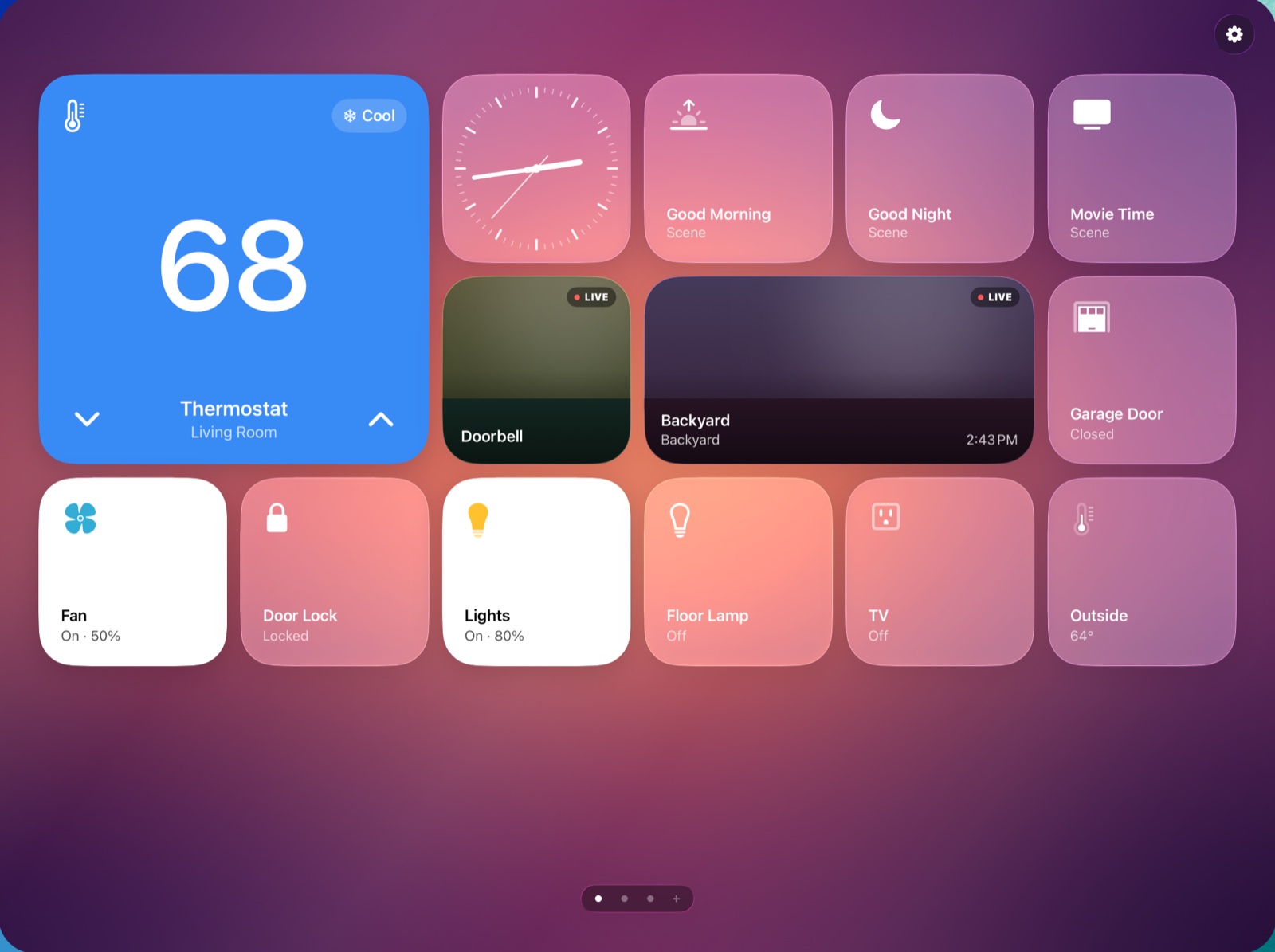
HomePad turns an iPad into an elegant control panel for your HomeKit home. Lights, scenes, thermostats, locks and live cameras become glass tiles you arrange yourself, on screens you swipe between.
iPadFree
Free · Requires iPadOS 26 or later and a home set up in Apple's Home app
Features
Everything in your home, one tap away.
HomePad works with what you already have in Apple's Home app. Nothing to set up twice, and nothing leaves your iPad.
Tiles for everything
Accessories, scenes, cameras and clocks each become a tile, alongside widgets for photos, Now Playing and your shortcuts. Tap a light to toggle it, nudge a thermostat up or down, lock a door, or run a scene.
Arrange it your way
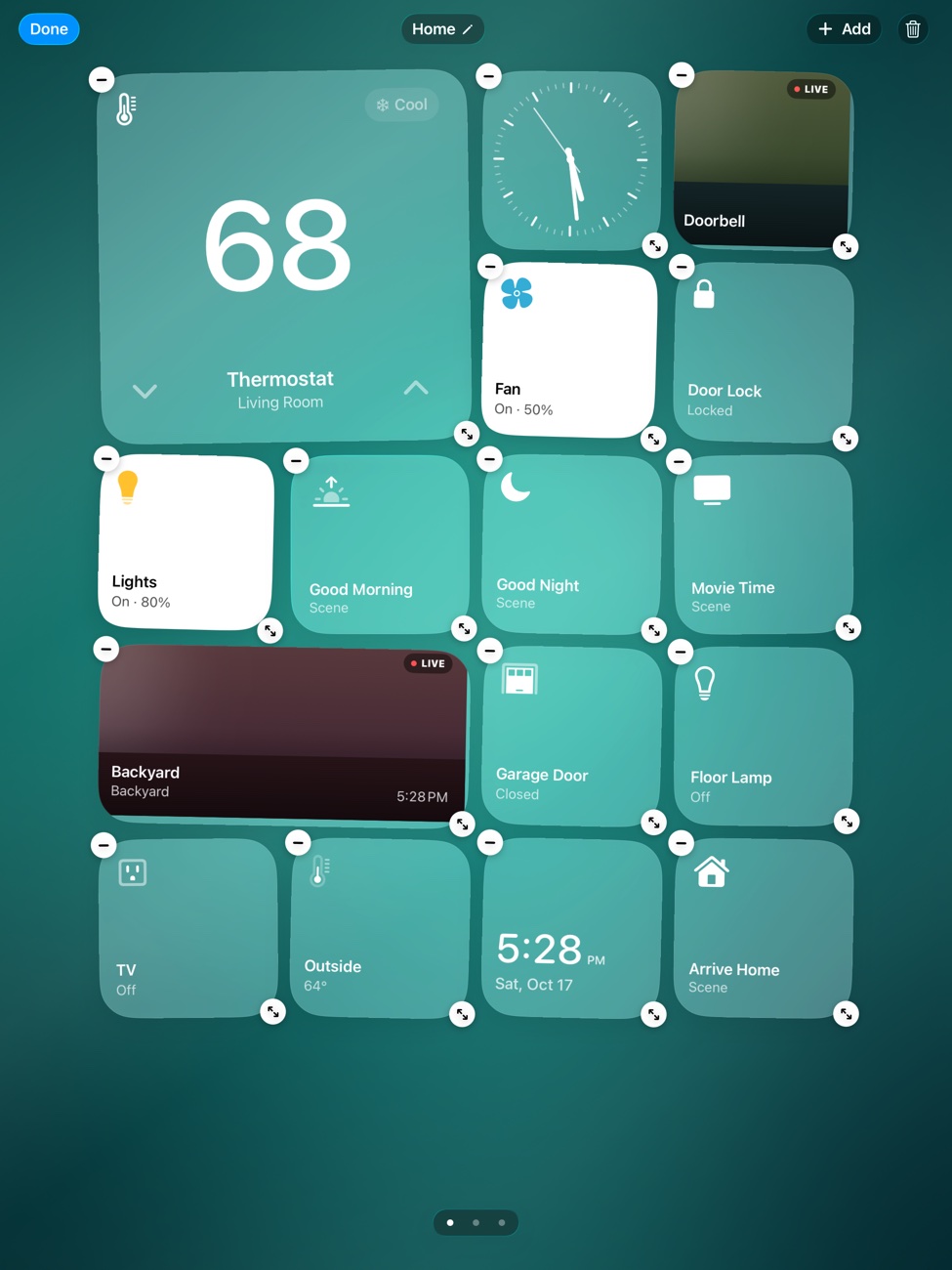
Touch and hold to enter edit mode, then drag tiles where you want them and make each one small, medium or large. Landscape and portrait keep their own layouts.
Up to 20 screens
Give every room, floor or routine its own screen and swipe between them. Swipe past the last one and tap + to add another.
Live cameras
Doorbell and security cameras stream live right on the tile, so a glance at the wall tells you who's at the door. Open one full screen and the locks, doors and lights in its room are right there as buttons.
Made to stay on
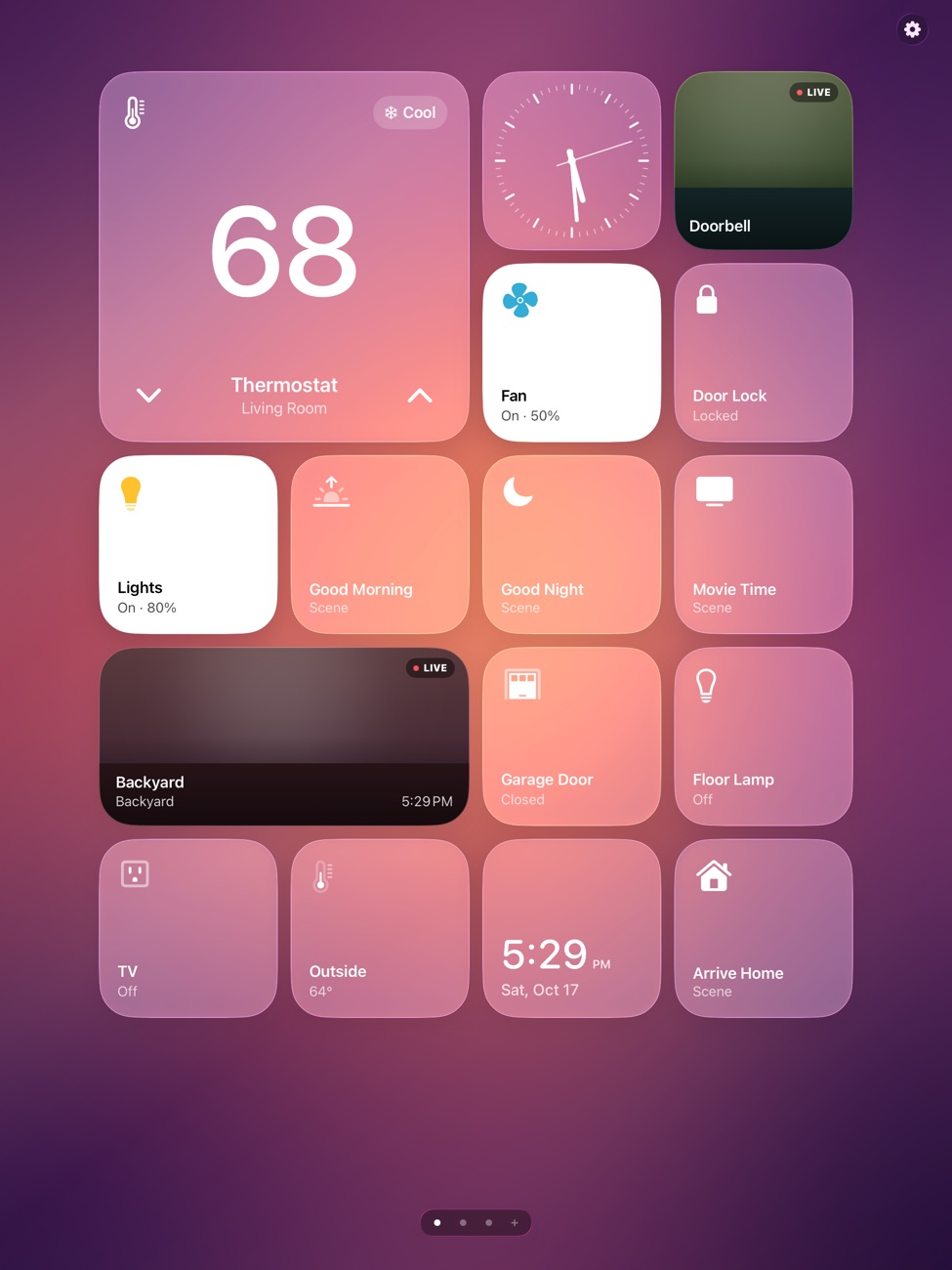
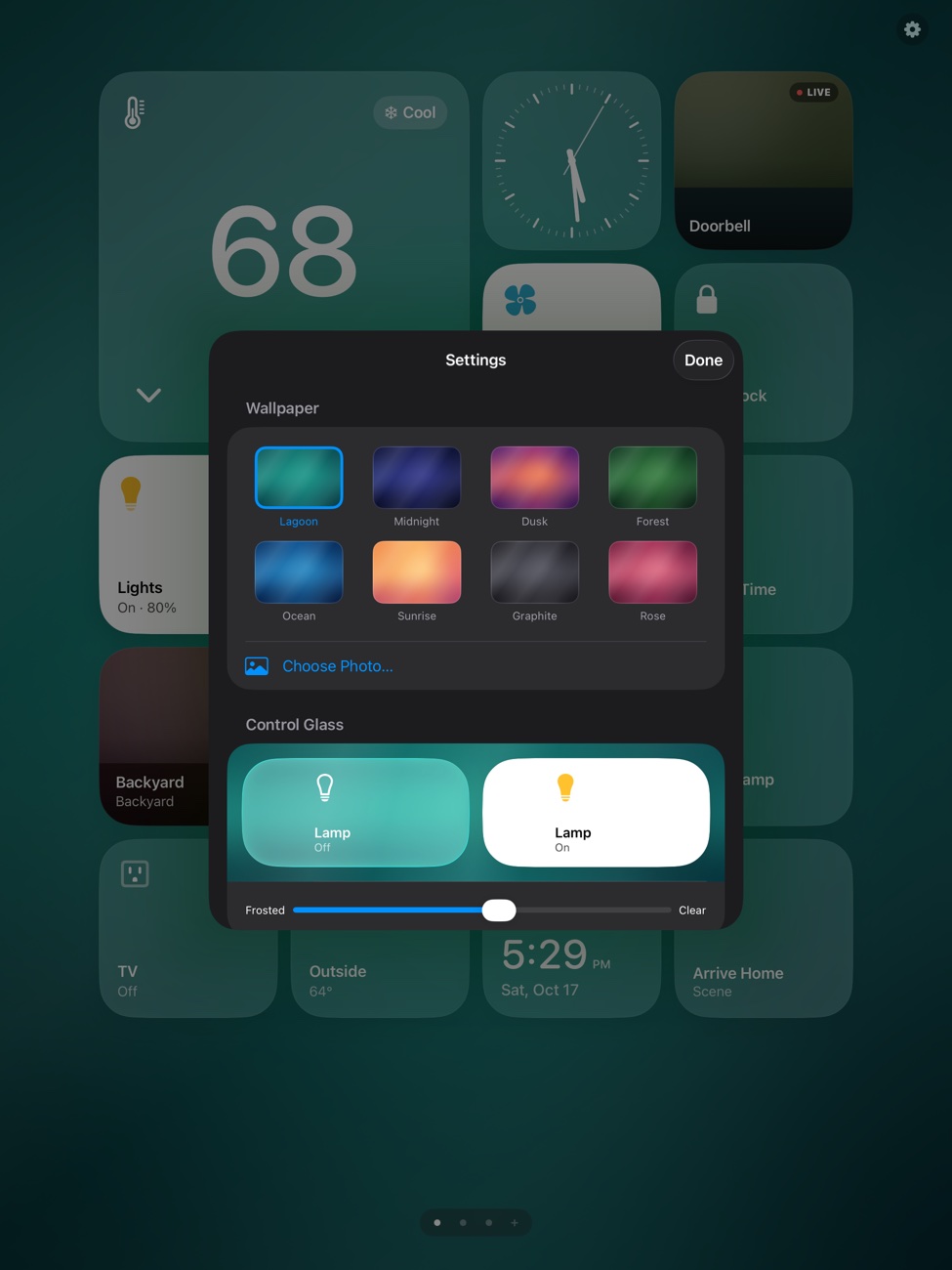
Pick a wallpaper or one of your own photos, set how clear the glass is, and keep the screen awake so the panel is always ready on a stand or a wall mount.
Photos and Now Playing
A Photos tile cycles through pictures you choose, and a Now Playing tile shows what the iPad is playing in Music, with play, pause, skip, volume and an AirPlay picker.
Siri and Shortcuts
Shortcut tiles run any shortcut with a tap, and the Open Screen and Show Camera actions let Siri or a shortcut bring up any screen or camera.
Private by design
HomePad talks to HomeKit on your iPad and nothing else. No account, no servers, no analytics, and your layouts stay on the device.
Gallery
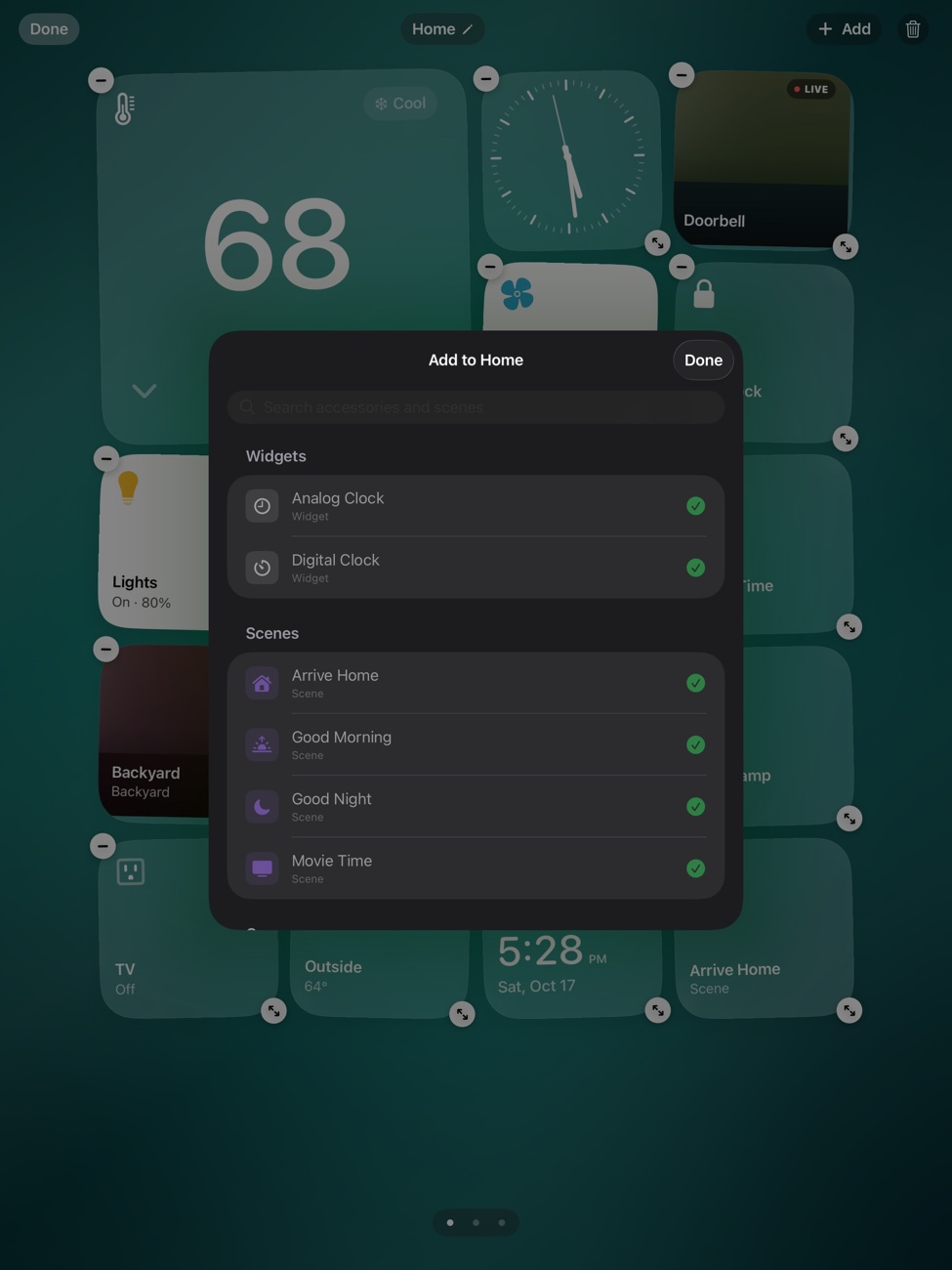
Any wallpaper, any time of day.
How it works
Ready in a minute.
- Open HomePad and allow it to access your Home. It shows only what Apple's Home app already knows about.
- Touch and hold anywhere on a screen, tap Add, and pick the accessories, scenes, cameras, clocks and widgets you want.
- Drag tiles into place and pick a size for each one. Swipe past the last screen to add another.
- Open Settings to choose a wallpaper and keep the screen awake, then put the iPad on a stand or the wall.
FAQ
Questions
Does it work with my accessories?
If an accessory, scene or camera shows up in Apple's Home app, HomePad can show it. Set up your home in the Home app first, then open HomePad.
Is it iPad only?
Yes. HomePad is designed for an iPad on a stand or mounted on a wall, in either orientation. It requires iPadOS 26 or later.
Why does a camera tile sometimes go black?
HomeKit allows one live stream per camera at a time. If the Home app or another device is already watching, the tile shows the last snapshot until the stream is free.
Will the iPad stay on?
Turn on Keep Screen Awake in HomePad's settings. It applies only while HomePad is open.
Does HomePad collect anything?
No. There is no account, no analytics and no server. Your screens, tiles and wallpaper are stored on the iPad. Privacy policy.
Can Siri or a shortcut open a screen?
Yes. HomePad adds Open Screen and Show Camera actions to the Shortcuts app, so a shortcut, an automation or your voice can bring up any screen or put a camera full screen.
How do I get help?
The support page has common fixes and a contact form.